 Simple
Web installation guide
Install SimpleK8s and build a Kubernetes cluster from your browser. No commands needed.
What you need
- The latest stable ISO from the download page.
- A machine booted from that ISO (live session, nothing installed yet).
- The machine’s IP address on your network.
202609290644; newer versions may look slightly different.1. Open the wizard and log in
Find the node’s IP, wizard address, and live root password on the node’s own screen (console). It prints them on every boot:
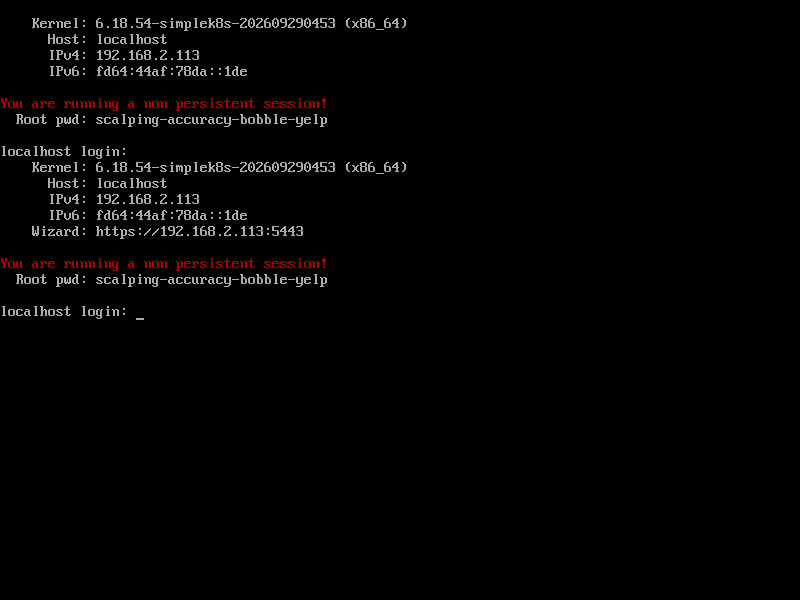
Then go to https://<node-IP>:5443 and accept the self-signed certificate warning.
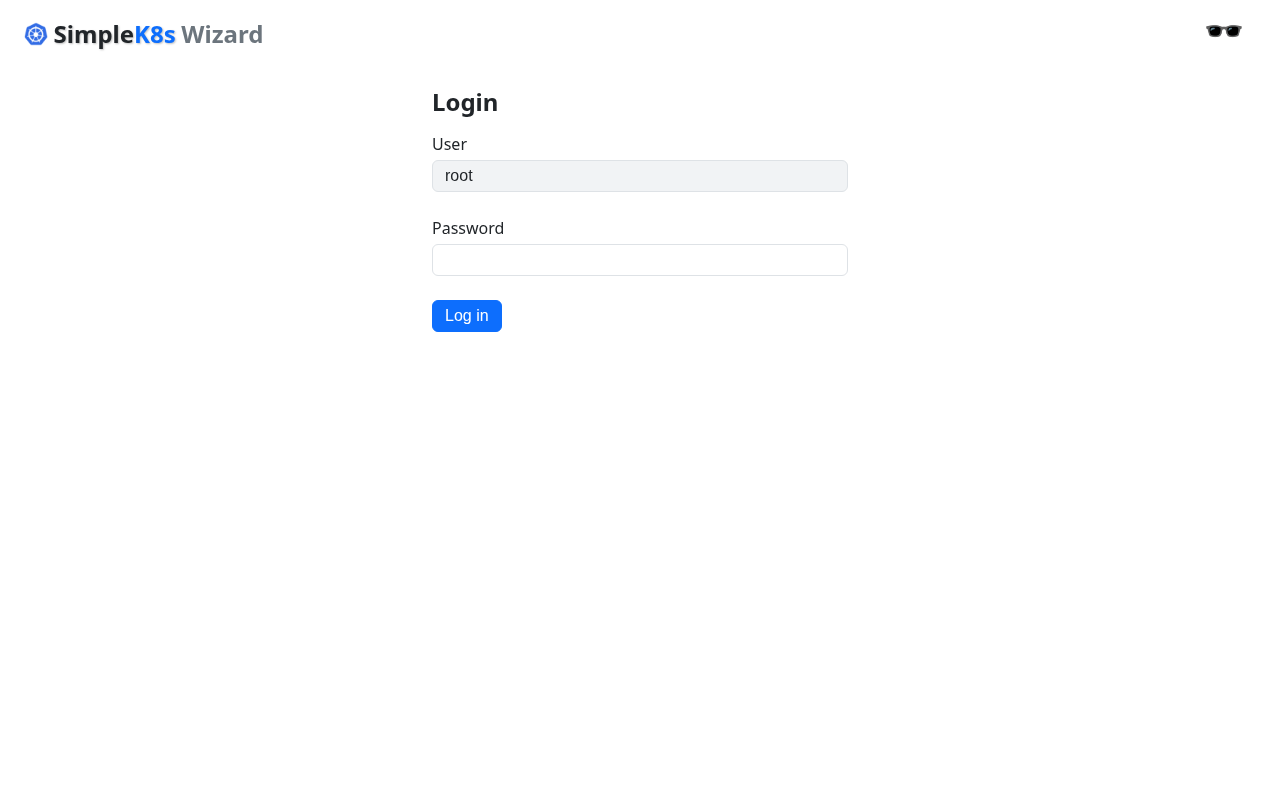
Log in as root with the password from that screen. A fresh one is
generated on every live boot.
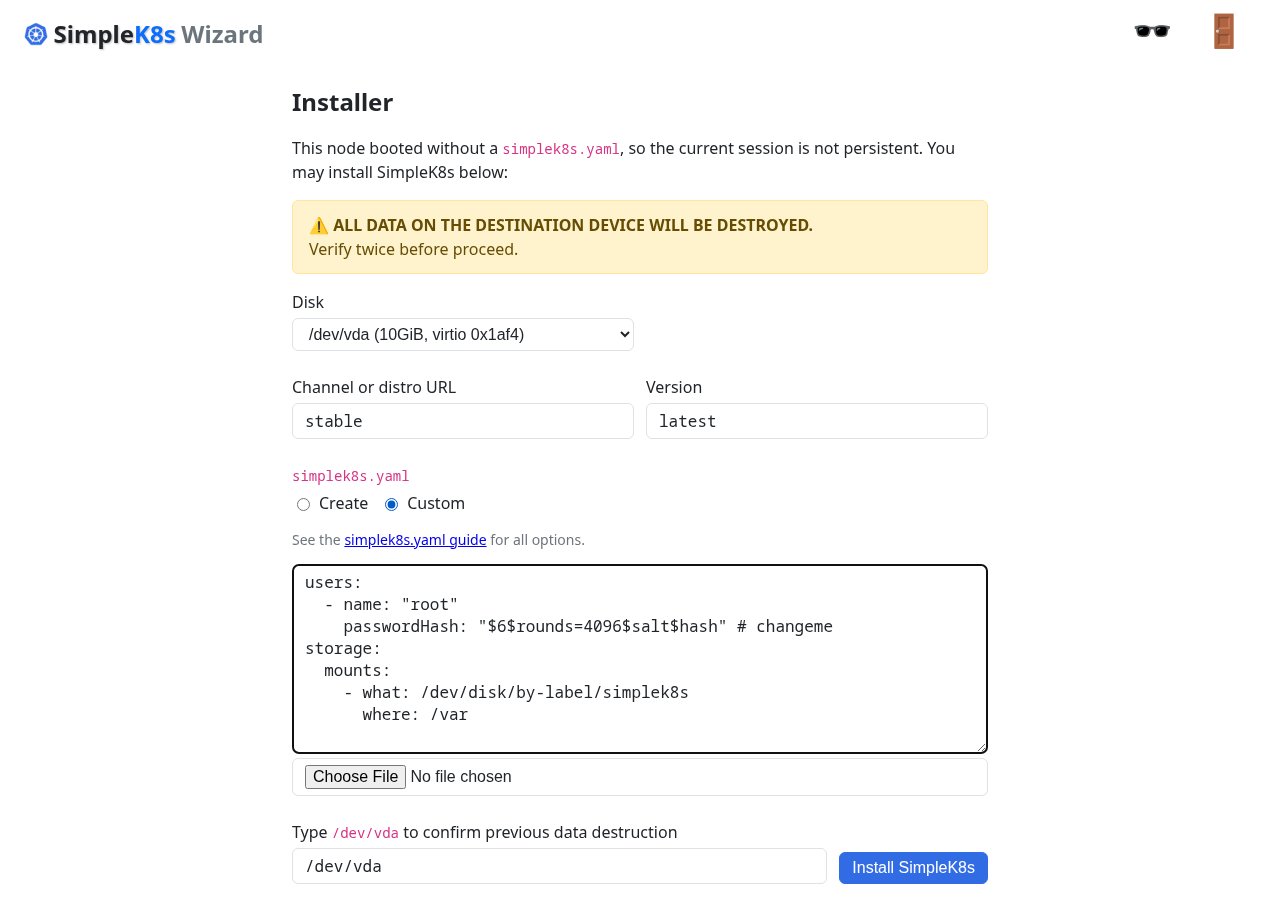
2. Install SimpleK8s on the disk
The Installer page appears because the live session is not persistent yet.
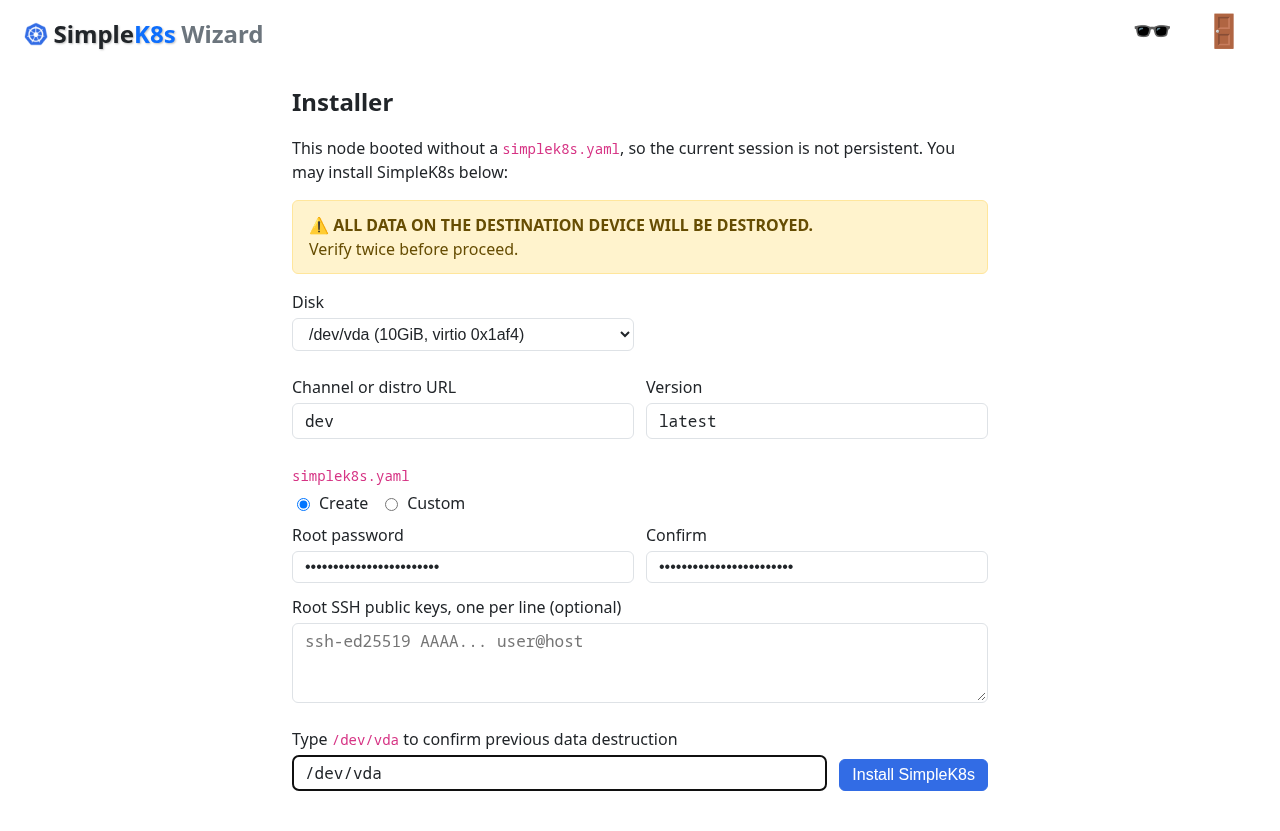
- Disk: pick the destination disk. Everything on it will be erased.
- Channel:
stable(recommended),rolling(releases getting ready for stable), ordev(latest builds to try out). - Version: keep
latest. - Root password: type it twice (or switch to
Customand paste your ownsimplek8s.yamlinstead — see below). - SSH keys (optional): paste root SSH public keys, one per line.
- Confirm: type the disk path (for example
/dev/vda) to prove you checked it twice. - Press Install SimpleK8s.
Prefer a config file? Select Custom and paste (or upload) your simplek8s.yaml:
When it finishes, press Reboot:
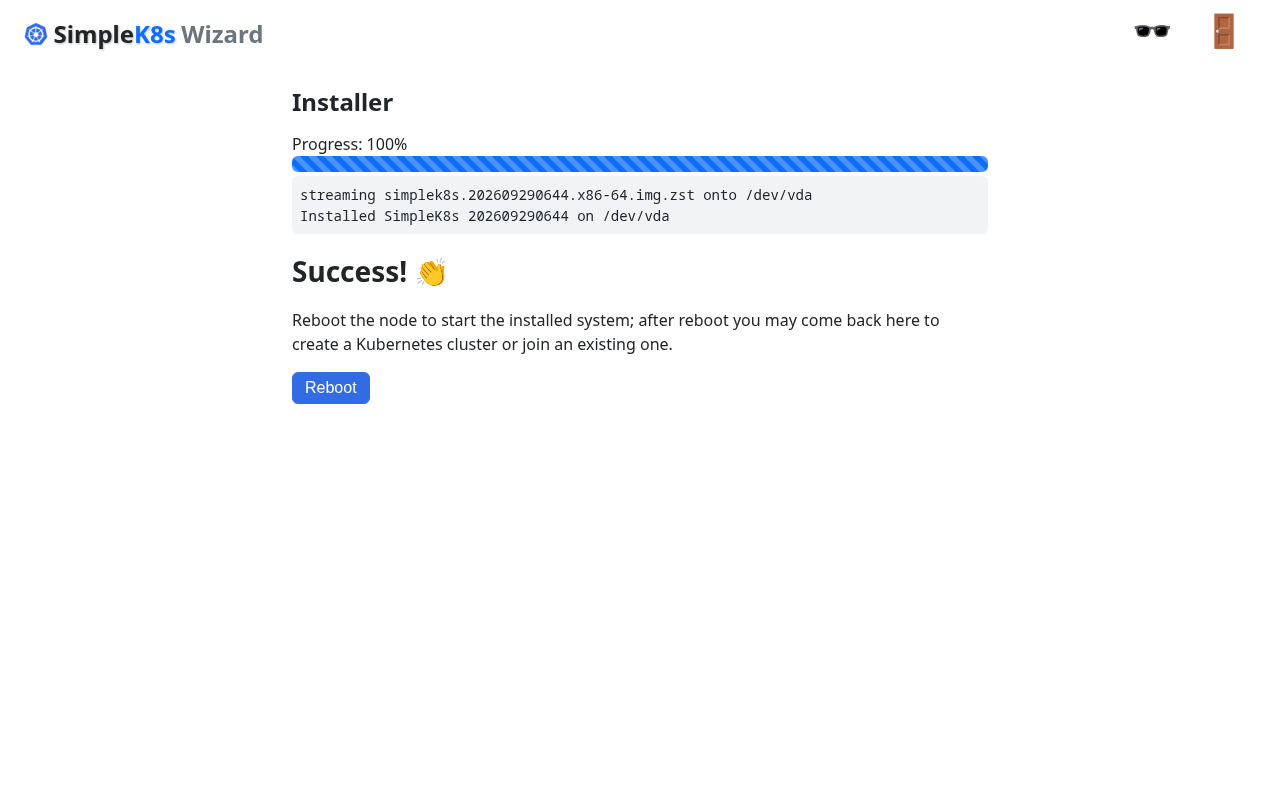
The node now boots from its disk. Log in to the wizard again — this time with the root password you set during the install.
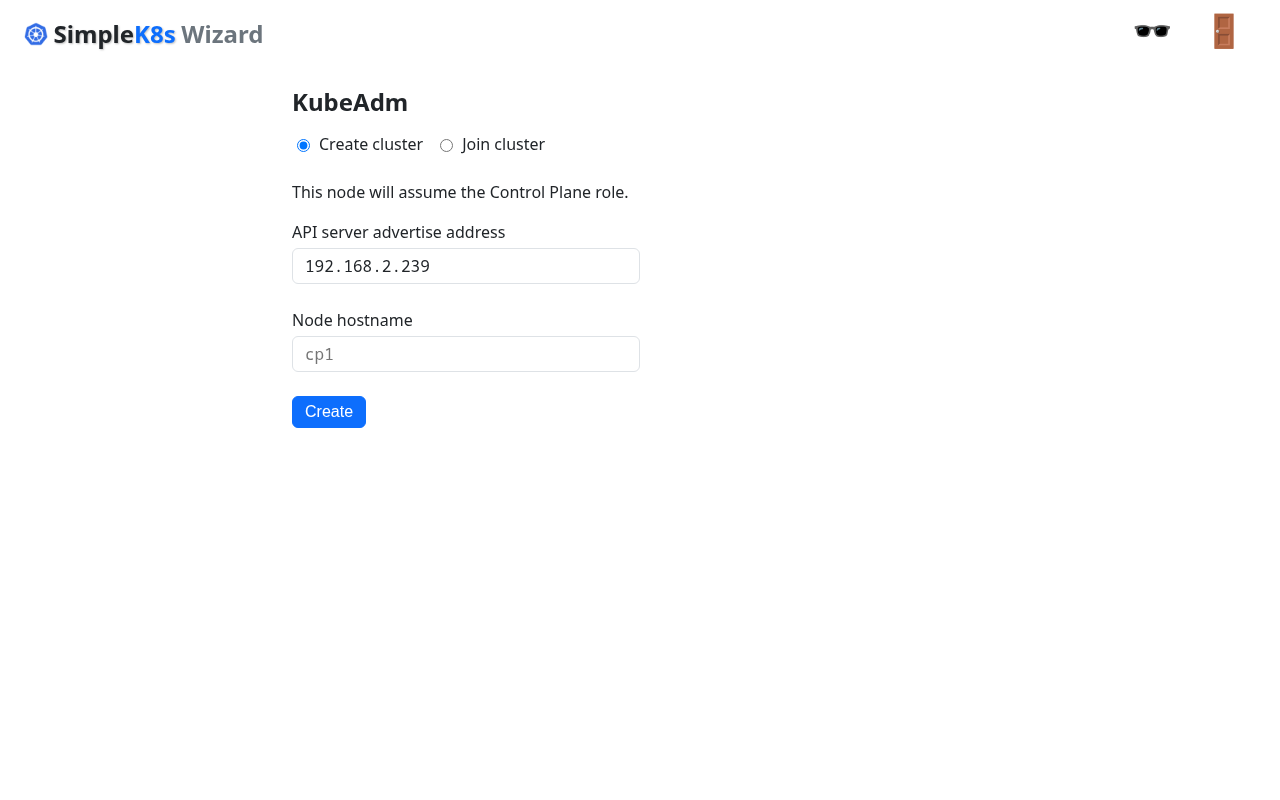
3. Create the cluster
Open the KubeAdm page. Keep Create cluster selected, check the
advertise address, give the node a hostname, and press Create:
When it is done, press Continue:
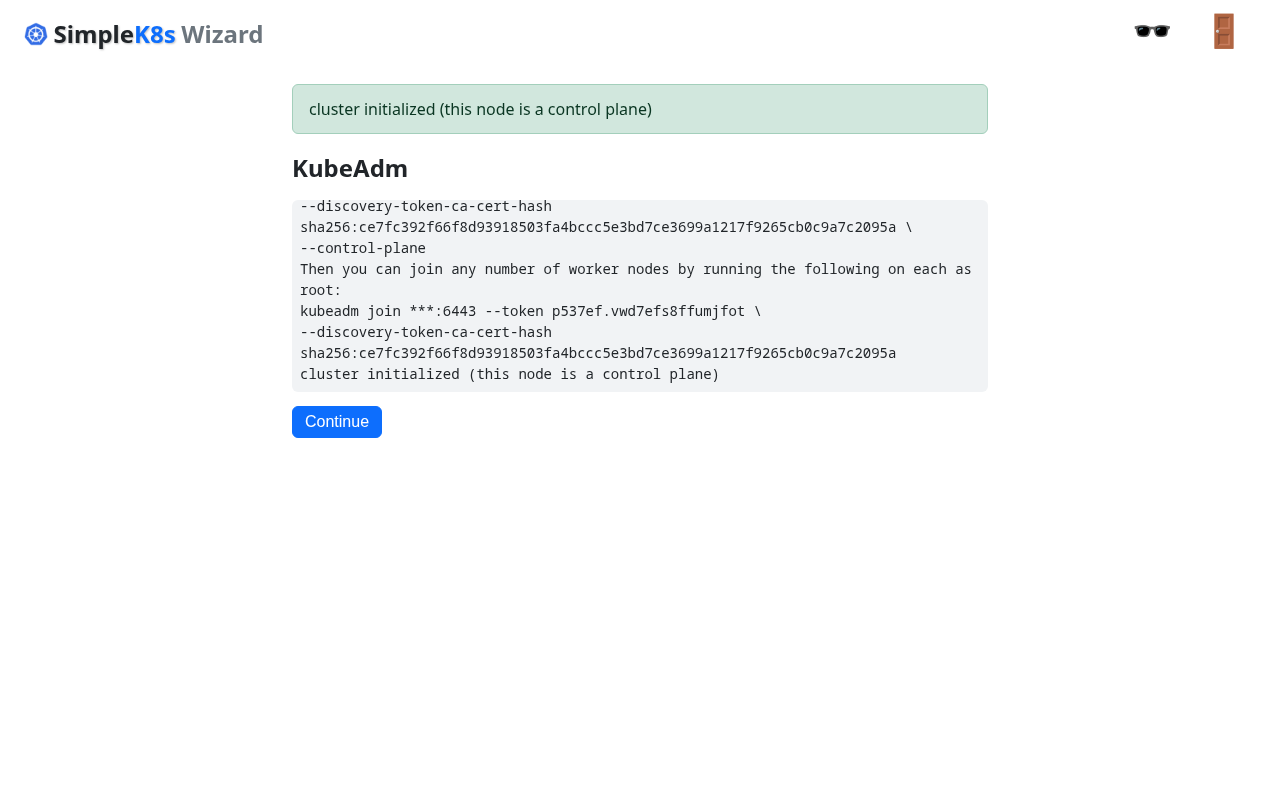
Your cluster exists: one control-plane node, ready for workers.
4. Create join tokens
Open the Tokens page and press List to see the active tokens:
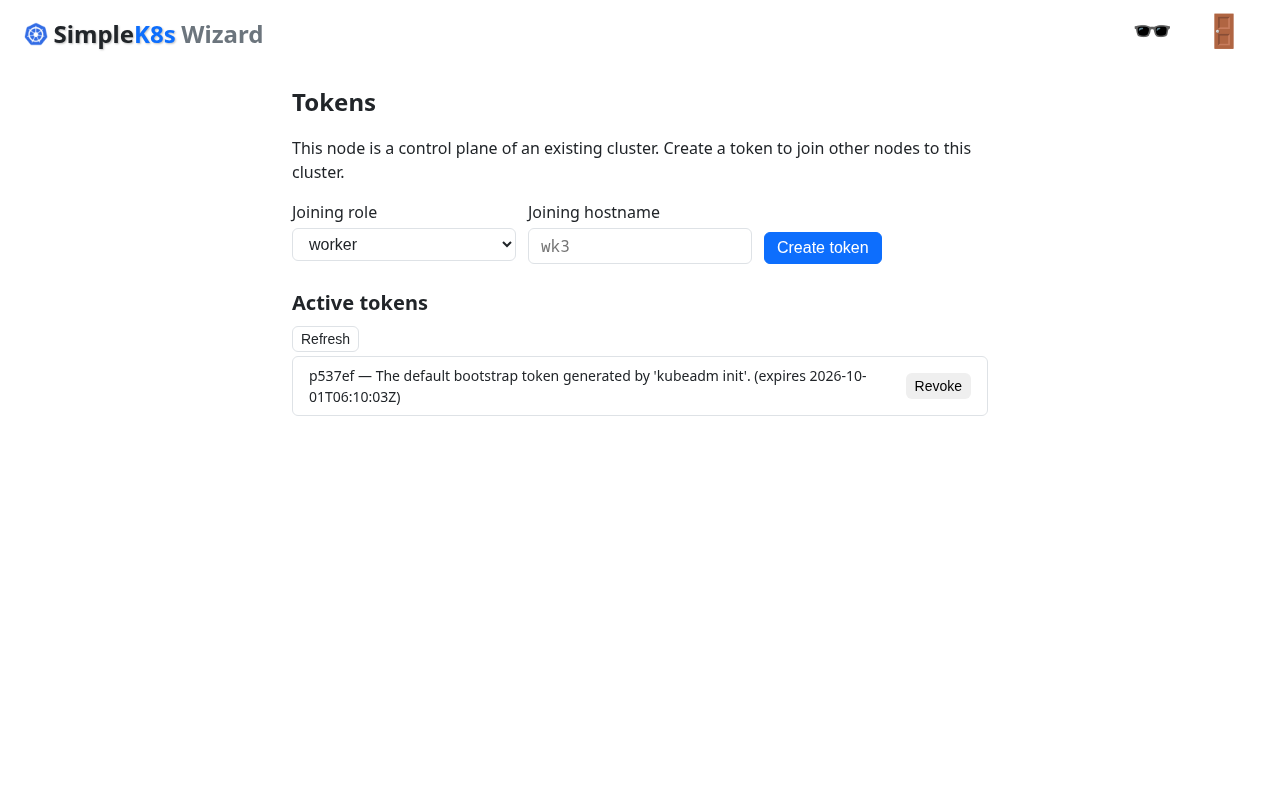
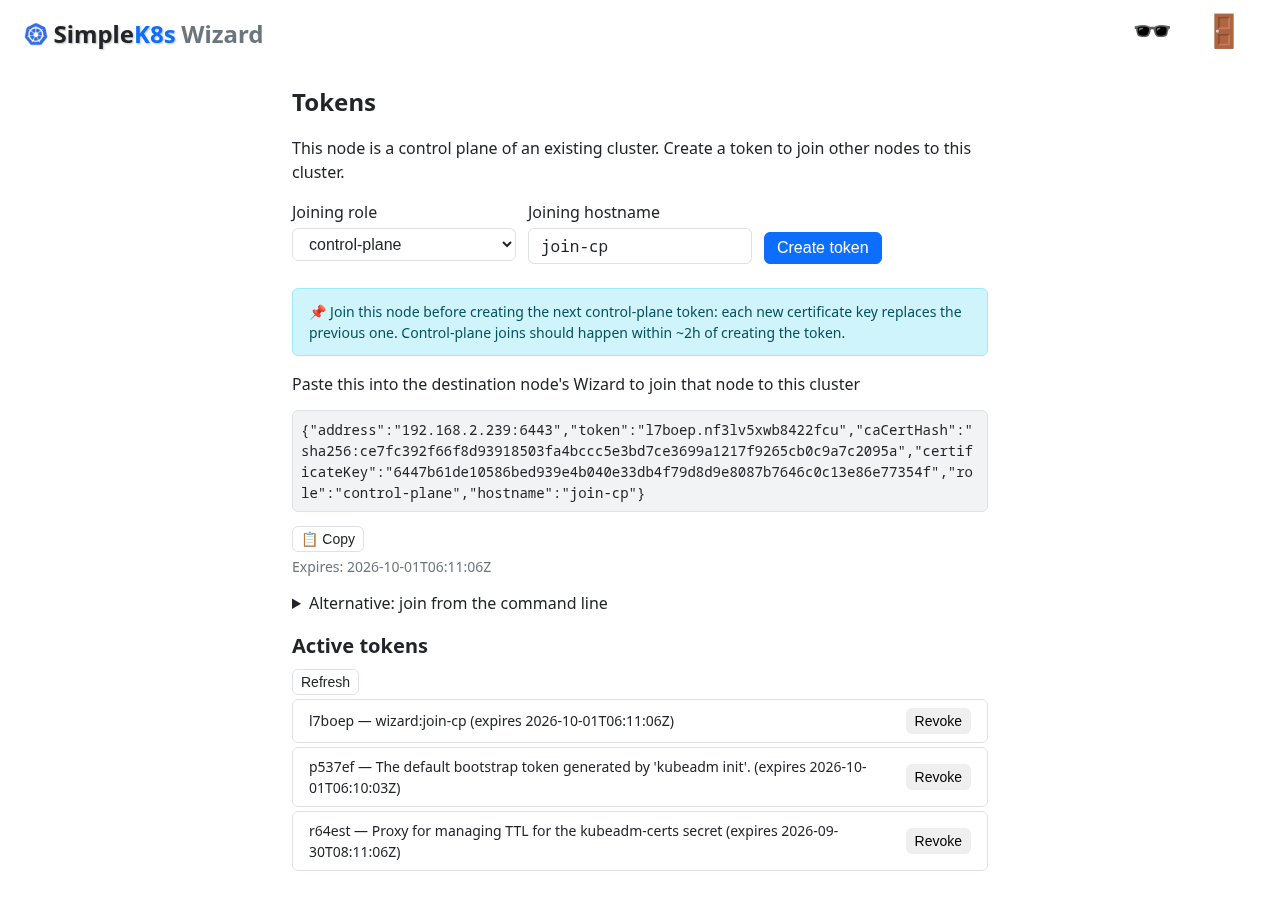
Create one token per node you want to add:
- Role control-plane, hostname of the new control-plane node. The page shows the join command and the JSON config the new node needs:
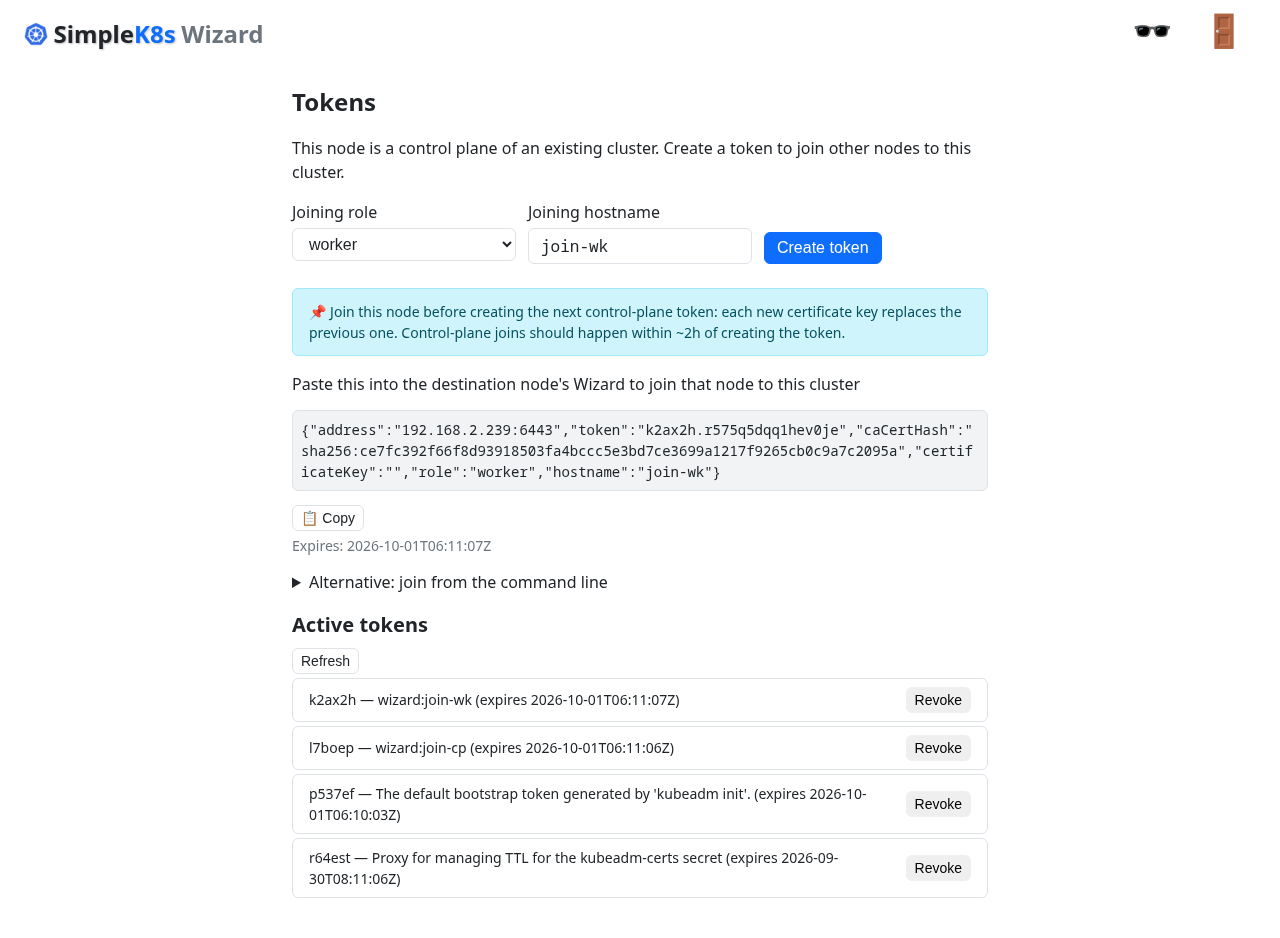
- Role worker for worker nodes:
Tokens expire. Create fresh ones if a join fails with an expired token.
5. Join a second control-plane node
On the new node (installed the same way as above), open its wizard, select Join cluster, and paste the control-plane JSON config:
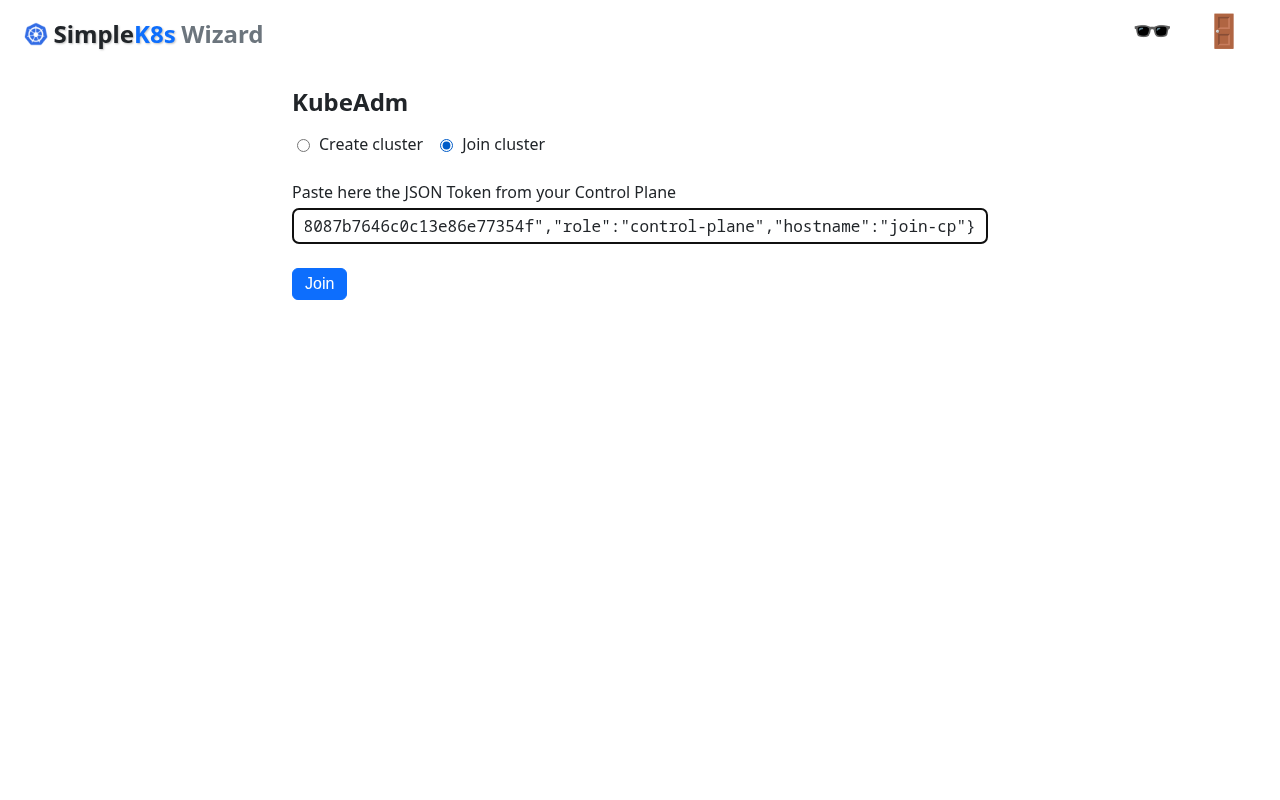
Press Join. When it finishes:
Done — the cluster now has two control-plane nodes:
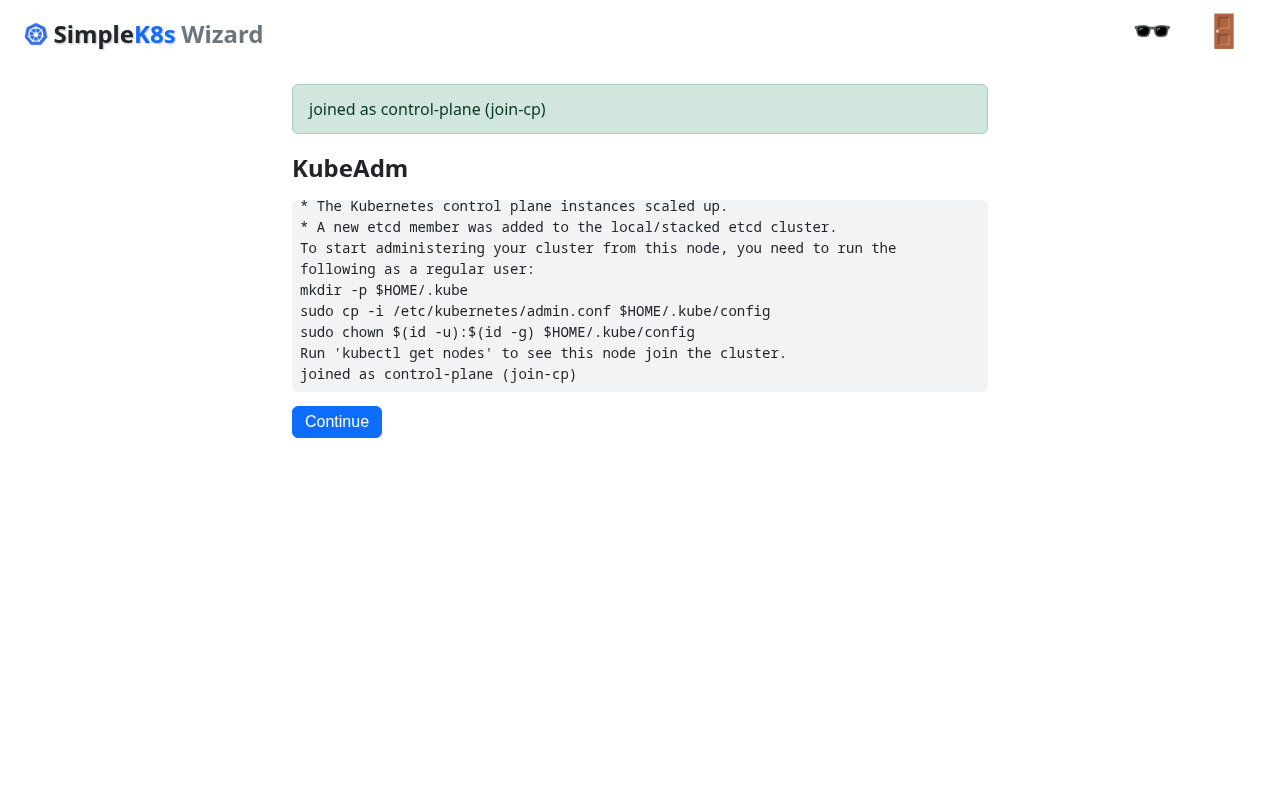
6. Join a worker node
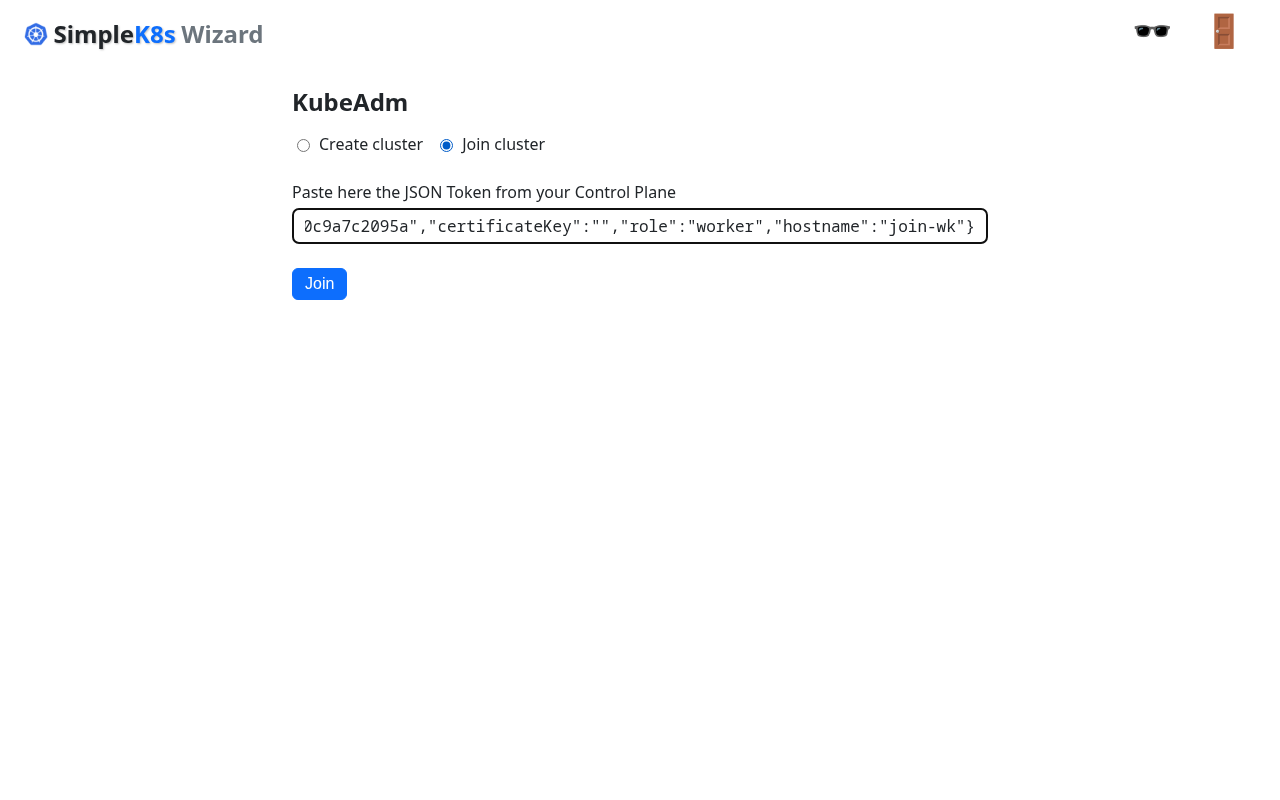
Same steps on the worker: paste its worker JSON config and press Join:
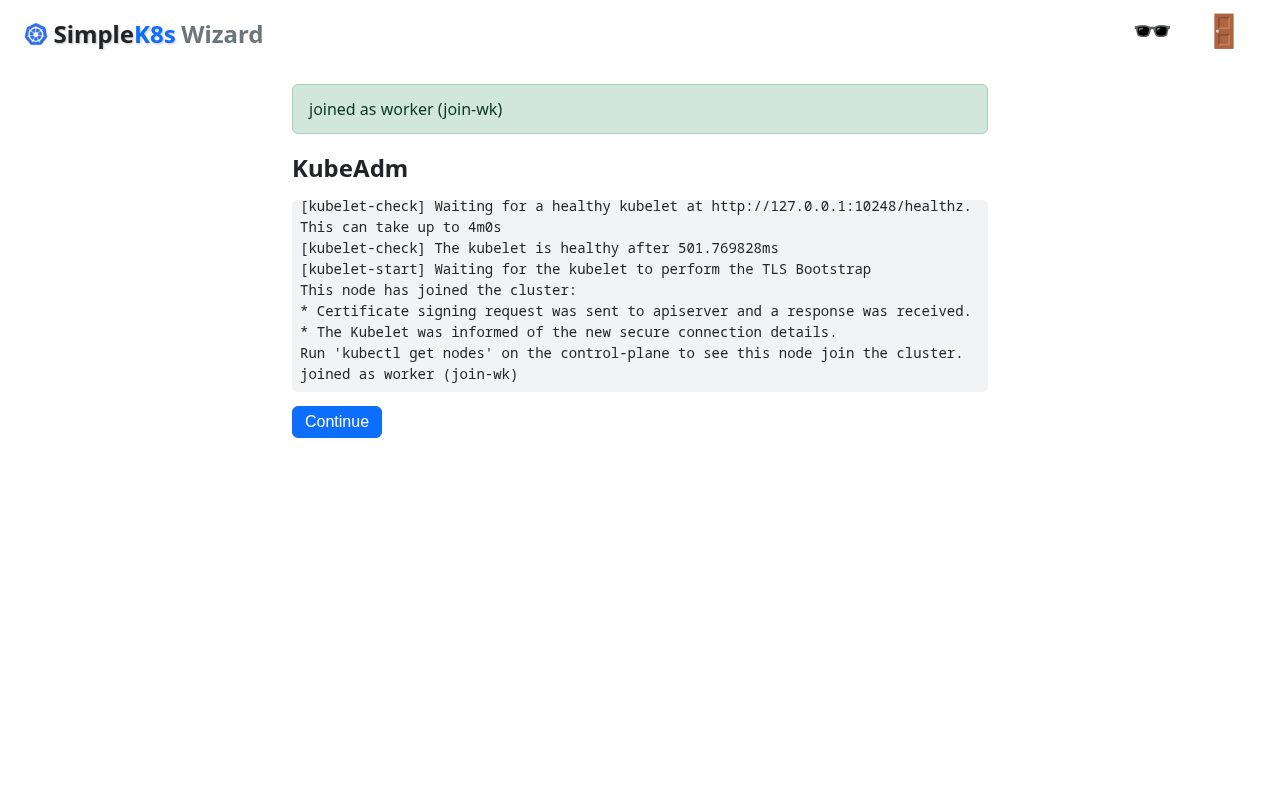
That’s it. You built a three-node Kubernetes cluster — install, create, join — without typing a single command.
Notes
- With Secure Boot enabled, enroll the SimpleK8s key once per machine — see Secure Boot.
- Prefer the terminal? Follow the terminal installation guide.